
TL;DR
- Since Xcode 27, a coding agent can build your app, launch it in the Simulator, tap, swipe and type, and look at the result. After every action it gets a screenshot, the UI hierarchy and the app’s logs.
- It ships as five MCP tools plus a skill written by Apple that tells the agent how to use them. Claude Code and other agents that speak MCP can load both.
- I ran it once on a small SwiftUI app: in 23 actions over about five minutes it found one real bug and made no false reports.
- It still gets things wrong. It can only tap coordinates, it can’t see inside some views, and every action costs tokens. In the one public benchmark so far, it finished 27 of 30 scenarios.
- Before you trust it, plant known bugs in your own app and see what it finds. That’s my next run.
Until Xcode 27, an agent working on an iOS app stopped at the build. It could compile, run tests and render a SwiftUI preview. It couldn’t open the app and check that a button actually does something. I wanted to know whether Claude Code can now use an app the way a tester would, so I set up Xcode 27’s new tools and let it loose on a small app.
#Where it stands
#What Xcode 27 adds
Xcode 27 closes that gap in three ways:
- The agent checks its own UI work before handing it back, instead of saying “this should work”.
- It catches bugs that only show at runtime: a button that does nothing, a screen that goes to the wrong place, a crash on an empty list, a title cut off at a large text size.
- It taps real elements, not guessed pixels. Every element in the UI hierarchy comes with a point to tap, so the agent doesn’t have to read coordinates off a screenshot.
What the agent can do in Xcode 26.3 and Xcode 27
| Task | Xcode 26.3 | Xcode 27 |
|---|---|---|
| Build the project | Yes | Yes |
| Run unit and UI tests | Yes | Yes |
| Render a SwiftUI preview | Yes | Yes |
| Tap, swipe and type in the app | No | Yes |
| Read the running app’s hierarchy | No | Yes |
Third-party tools such as XcodeBuildMCP and RocketSim could already drive the Simulator. What’s new is that it’s built into Xcode and Apple wrote the instructions. The tradeoff is cost: each action returns a lot of text, and SwiftLee’s benchmark measured about seven times more text than RocketSim’s command-line tool for the same scenarios.
#How it works
Apple wrote the skill for two agents, not one. The main agent opens a session and passes its ID to a helper agent, which does all the looking and tapping and reports back.
The main agent sees the helper’s written report, not every capture.
One session, in order:
DeviceInteractionStartWorkspaceSessionfinds and boots a simulator. Apple’s skill says to call it early, because booting takes time.DeviceInteractionInstallAndRunbuilds, installs and launches the app. Call it again after every code change.DeviceInteractionSynthesizeacts and captures, as many times as needed. The skill’s rule: capture, act, capture again and compare.DeviceInteractionEndSessioncloses it. The skill says open sessions are expensive, so close them as soon as the work is done.
A fifth tool, DeviceInteractionStartSession, opens a session that isn’t tied to a project. Apple’s skill says to use it only for an app that’s already installed.
#What the agent can do
Every action goes through one tool, DeviceInteractionSynthesize, with a short command in the syntax Apple’s skill documents. When the command finishes, the tool captures the screen again and hands back a screenshot, the UI hierarchy and the logs.
Commands the agent can send
The syntax Apple’s skill documents. An empty command looks without touching: it captures the screenshot and the hierarchy.
| Action | Command |
|---|---|
| Tap, or hold | t x y [duration] |
| Double tap | d x y |
| Swipe | t x1 y1 f x2 y2 [duration] |
| Drag and drop | drag x1 y1 x2 y2 [hold] [move] |
| Pinch, multi-touch | mt [x y, x y] duration … |
| Hardware button | b h, b p, b u, b d |
| Type text | sender keyboard kbd <text> |
| Rotate the device | orientation <name> |
| Wait | w duration |
The same commands with values:
t 125 215                                           tap
d 200 300                                           double tap
t 200 600 f 200 200 0.3                             swipe up
drag 100 300 100 100                                drag and drop
mt [100 300, 300 300] 0.5 [175 300, 225 300] 0.5    pinch
b h                                                 press Home
sender keyboard kbd hello\u{000A}                   type hello and press Return
orientation landscapeLeft                           rotate to landscape
w 0.3                                               wait 0.3 seconds
Apple’s skill documents multi-touch, but SwiftLee reports that two-finger touches weren’t supported in his tests. Try a pinch on your own setup before you rely on it.
watchOS adds the Digital Crown and side button. tvOS has no touch screen, so the agent presses Siri Remote buttons instead.
The agent finds its targets in the UI hierarchy, where each element comes with a calculated tap point. This example is from Apple’s skill:
UIView {{100, 200}, {60, 30}}, hitPoint: {130.0, 215.0}
  UIButton "Login" {{110, 205}, {30, 20}}, hitPoint: {125.0, 215.0}
Apple’s skill tells the agent to tap the hitPoint and to estimate from the screenshot only after a hitPoint has failed. It can’t simulate Face ID or run an accessibility audit, according to SwiftLee’s tests.
#Setup
Four steps. The commands are for Claude Code; other agents load the same skill and server in their own way.
Step 1: Turn on Xcode’s agent tools
In Xcode 27, choose Xcode → Settings, select Intelligence, and under Model Context Protocol turn on Allow external agents to use Xcode tools. Without it, the agent can’t reach Xcode’s tools.
Step 2: Add Apple’s MCP server and skills
Apple’s MCP server ships inside Xcode as xcrun mcpbridge, so there’s nothing to download. Apple’s guide, Giving external agents access to Xcode, adds it to Claude Code with one command:
claude mcp add --transport stdio xcode -- xcrun mcpbridge
claude mcp list   # check that xcode shows as connected
For Codex, the same guide gives codex mcp add xcode -- xcrun mcpbridge.
That adds Xcode’s tools but not Apple’s skills. Xcode 27 also exports both together as a ready-made Claude Code plugin, which is the easier route for this guide. Point Claude Code at it in ~/.zshrc:
export CLAUDE_CODE_PLUGIN_DIRS="$(xcrun agent plugin path --plugin-format claude)"The skill then shows up as xcode-integration:device-interaction. Use one route, not both: the plugin brings its own xcrun mcpbridge server, so if you added the server with claude mcp add, remove it with claude mcp remove xcode. Otherwise every tool appears twice.
Step 3: Open the project in Xcode
The tools work through the running Xcode, so the project has to be open there. The first time the agent connects, Xcode asks you to allow it.
Step 4: Give the agent its own Simulator
Use one simulator only for these runs and erase it before each one, so no state leaks from the last run:
xcrun simctl shutdown "iPhone 17 Pro"   # erase only works on a shut-down simulator
xcrun simctl erase "iPhone 17 Pro"
xcrun simctl io booted recordVideo run1.mp4   # after the session boots it
The recording is what you’ll show people: the agent’s taps are hard to believe from a log alone.
#What happened in the first session
I had Claude Code write a small SwiftUI grocery list app with three screens: the list, a New item sheet and an item detail screen. Then I ran one session on it, on 29 October 2026. Nothing was planted, so this is Part B of the test below, and I stopped the helper after about five minutes.
The setup: Claude Code 2.1.312 with Claude Opus 5.5, Xcode 27.0 (27A266a), a new iPhone 18 Pro simulator on iOS 27.0, and the prompt from “The prompt” below. The helper read Apple’s skill file first and was given the tool’s real name up front (see the gotchas).
The first session
One run on 29 October 2026, stopped after about five minutes. An action is one DeviceInteractionSynthesize call.
| Measure | Result |
|---|---|
| Screens reached | 3 of 3 |
| Actions | 23, none of them retries |
| Time | about 5 minutes |
| Problems reported | 1 |
| Real | 1 |
| False | 0 |
| Duplicates | 0 |
| Crashes | 0 |
| UI hierarchy per action | 8.1 KB on average |
| UI hierarchy in all | 187 KB |
| Helper agent’s tokens | about 100,000 |
Tokens are Claude Code’s own count for the helper agent, including reading the skill file and the screenshots. The hierarchy figures are the sizes of the 23 text files Xcode wrote, one per action; SwiftLee measured about 10 KB on a list screen.
The bug it found is real, and I didn’t know about it. The New item sheet won’t save an empty name, but the item detail screen lets you delete the whole name. The item is left with no name on the list, only its quantity.
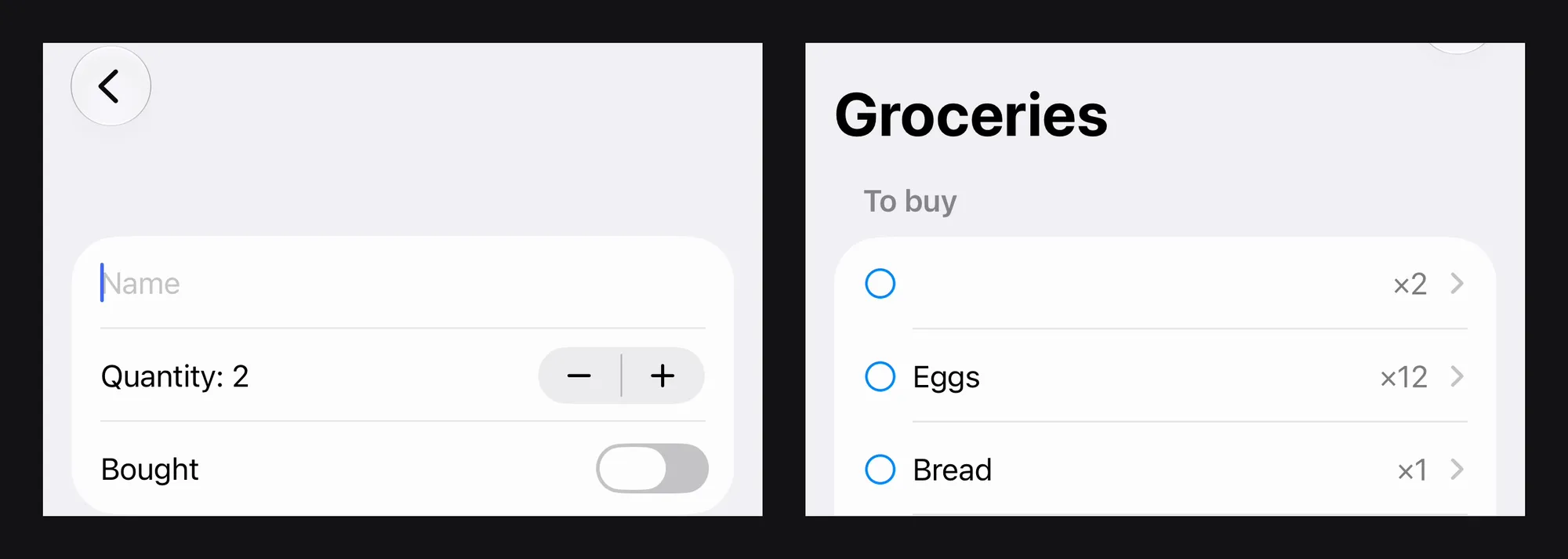
The UI hierarchy shows it too. The row’s button before and after:
Button, {{59.7, 224.2}, {308.0, 20.3}}, label: 'Milk, ×2', hitPoint: {213.7, 234.3}
Button, {{327.7, 224.2}, {40.0, 20.3}}, label: '×2', hitPoint: {347.7, 234.3}
It also left out two things Apple’s skill says not to report: a glitch during the push animation, which cleared on the next capture, and the keyboard covering the Quantity row in landscape. Because I stopped it early, it didn’t test swipe-to-delete, Cancel on the New item sheet, or a name of only spaces on the detail screen.
#How to test it on your own app
A list of bugs an agent found means little unless you know what was there to find. So before you rely on it, test it twice: once on bugs you planted, once on an app with nothing planted.
Part A: planted bugs
On a branch, plant about ten bugs and keep the list outside the repo, where the agent can’t read it. Cover different kinds of problem, for example:
Bugs to plant, for example
| Kind | Planted bug |
|---|---|
| Functional | A button that does nothing |
| Functional | Back goes to the wrong screen |
| Crash | A force unwrap that crashes on an empty list |
| State | An edited item that doesn’t update in the list |
| Visual | A title cut off at the largest text size |
| Visual | Text that overlaps in landscape |
| Visual | Low contrast in dark mode |
| Input | The keyboard covers the Save field |
| Gesture | Swipe-to-delete removes the wrong row |
| Hidden element | A menu behind a transparent overlay |
The last one is there on purpose. The agent can only tap coordinates, and hidden elements were the one case where Xcode’s tools failed in SwiftLee’s benchmark.
Part B: the same app, nothing planted
Run the same prompt on the unchanged app and mark every report as real, false or a duplicate. This is the part that shows what the agent invents.
The baseline
Give a QA engineer the same pass on both builds, with a time limit such as 30 minutes and without the list. Without a baseline, you can’t tell whether the agent is good or the bugs were easy.
The prompt
Use the same prompt on a freshly erased simulator for every run, and do at least three runs per part, because results vary from run to run:
Using the device-interaction skill, explore the app on session <session id>.
Visit every screen you can reach from the start screen. In every form, try
empty, very long and invalid input. Rotate the device once on each screen.
For each problem, report the screen, the steps to reproduce, what you
expected, what happened and the screenshot path. Don't change any code.
For dark-mode and text-size checks, switch the simulator between runs with xcrun simctl ui booted appearance dark and xcrun simctl ui booted content_size accessibility-extra-extra-extra-large. If your app needs its own launch arguments or environment variables, DeviceInteractionInstallAndRun takes commandLineArguments and environmentVariables for a single run, without touching the scheme.
For each run, log the planted bugs found, real bugs you didn’t plant, false reports, duplicates, time, tool calls, tokens and cost. Those numbers tell you where it fits in your workflow.
#What one benchmark measured
The only public numbers so far come from SwiftLee. He scripted ten Simulator scenarios on a small test app and ran each three times, through Xcode 27.1’s tools and through RocketSim’s command-line tool:
SwiftLee’s benchmark: Xcode 27.1 tools and RocketSim CLI
Ten scripted scenarios on a small test app, three runs each, on one machine.
| Measure | Xcode 27.1 tools | RocketSim CLI |
|---|---|---|
| Scenarios completed (of 30) | 27 | 30 |
| Tool calls | 41 | 88 |
| Time (s) | 114 | 94 |
| Text the agent reads (KB) | 400 | 56 |
| Estimated text tokens | about 100,000 | about 14,000 |
All three failures were the same scenario: an element hidden behind an overlay, which coordinate taps couldn’t open. Xcode’s tools needed fewer calls and also build and launch the app, which RocketSim doesn’t. SwiftLee builds RocketSim and says so, and it’s one machine and one test app, so treat it as a first data point.
#Where false reports come from
Expect some reports to be wrong, and check each one before anyone fixes anything.
Apple’s skill names the likeliest causes:
- A moment read as a state. The skill tells the agent not to report loading spinners, animations or the keyboard sliding in, but a capture taken mid-transition can still look broken.
- A view it can’t see inside. Elements marked
isRemoteLeafPlaceholderdon’t list their children, so the agent has to guess positions from the screenshot. - A tap that landed somewhere else. If an element moves during an animation, the tap hits whatever is there now. The skill allows one retry, then a report.
- Expected behaviour. Empty states, a disabled button on an incomplete form and permission dialogs aren’t bugs, and the skill says so. Count how often the agent reports them anyway.
#Gotchas that cost time
These come from the setup, from Apple’s documentation and skill file for Xcode 27.0, and from SwiftLee’s benchmark.
- Every Xcode tool appears twice. The plugin brings its own
xcrun mcpbridgeserver, next to one you added by hand. Runclaude mcp remove xcodeand keep the plugin’s. - The agent can’t reach Xcode’s tools. Allow external agents to use Xcode tools is off. Turn it on in Settings → Intelligence.
- Tools fail with no workspace. The tools work through the running Xcode. Keep the project open in Xcode.
- The skill tells the agent to call
DeviceEventSynthesize. The tool is namedDeviceInteractionSynthesizein Xcode 27.0. If the agent stalls, give it the real name in the prompt. - It can’t open a menu under an overlay. It can only tap coordinates. Check those screens by hand.
- The agent struggles to find or name an element. The element has no accessibility label. Label it; every tool works better with labels.
- Token use climbs fast. Each action returns a full UI hierarchy, about 10 KB on a list screen. Keep runs short, use screenshots for visual checks only, and end every session.
#Requirements
This is a development tool, so nothing changes for your users.
What you need
- Xcode 27 with the project open. This guide was written against Xcode 27.0 (27A266a).
- Simulators on iOS, watchOS or tvOS 27 or later. The tool descriptions also mention physical devices; this guide covers simulators only.
- Allow external agents to use Xcode tools turned on in Settings → Intelligence.
- An agent that supports MCP and skills, such as Claude Code.
Cost
- Xcode’s tools are free. You pay for the agent’s tokens.
- In SwiftLee’s benchmark, 30 scripted scenarios took about 100,000 text tokens through Xcode’s tools and about 14,000 through RocketSim’s command-line tool.
- Measure your own runs before you schedule them. Token use grows with every screen the agent visits.
#Further reading
- Apple: Giving external agents access to Xcode
- Xcode 27 MCP: higher token costs when navigating the Simulator (SwiftLee)
- Tried using Xcode 27’s official skills from Claude Code (Classmethod)
- Xcode 26.3 ships agentic coding: what it can do (awesomeagents.ai)
#My take so far
In my first session it worked well: it moved through the app on its own and found a bug I hadn’t noticed. Use it where a quick look at real screens saves someone a trip to the Simulator. Keep people where judgement matters.
Where it fits
- Checking a change right after the agent makes it. That’s the case Apple’s skill is written for: it’s meant to run after a feature that affects the UI.
- Apps with good accessibility labels. The agent reads the UI hierarchy, so labelled elements are easier for it to find and to name in a report.
Where it doesn’t fit yet
- Replacing an exploratory QA pass. Until you’ve measured it on planted bugs in your own app, you don’t know what it misses.
- Screens built on overlays, or on views it can’t see inside. It taps coordinates only, and some views don’t list their children.
- Long unattended runs. Every action returns a full UI hierarchy, so cost grows with each screen.